
If you do not have a Brief Accounting Archive application, CLICK HERE for information.
Download the Brief Accounting Archive Data file using the URL provided to you by Brief Legal Software. Once the installer is downloaded and run, the Archive data can be opened.
Double-click the Brief Accounting Archive application and quickly hold down the Option (alt) keyboard key until the following window is displayed:

Select "Select another data file" and click "Continue".
The following window will be displayed with the Brief Accounting files greyed out as shown. These are not the data file to open. Click the Documents folder on the sidebar as shown:
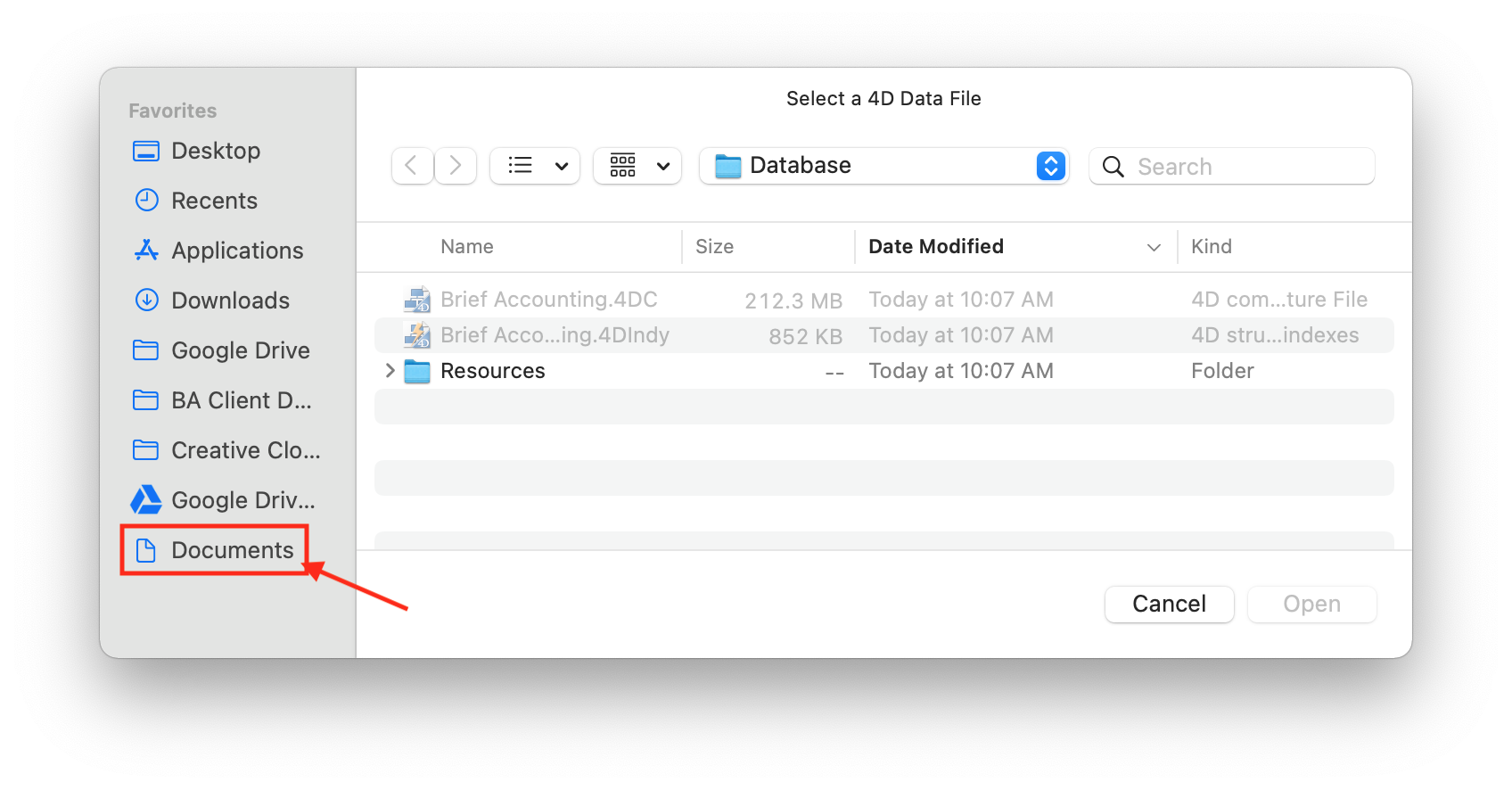
Browse to the following folder:
Documents > Brief Legal > Closed Year Archives
Double-click the Archive year(s) folder.
Select the Archive data file similar to shown below:

NOTE:
If the Option key is not held down when the Brief Accounting Archive application is opened, the most recent data file that was opened will be opened again. Holding down the Option key allows a different data file to be selected.
TIP:
If you do not see your Documents folder in Finder, it can be viewed in the Finder sidebar as below:
Open the Finder from the dock.
From the top menu bar click Finder and select Preferences from the drop down.
Then select the "Sidebar" option.
From there you can select what shows up in the Finder sidebar.
Check the "Documents" option and it will start showing up in the Finder sidebar:

0 Comments