
An Accounts Payable invoice may be made up of one or multiple invoice items. Each item may use a unique GL Account in order to reflect the expenses separately in the General Ledger.
To enter an Accounts Payable Invoice:
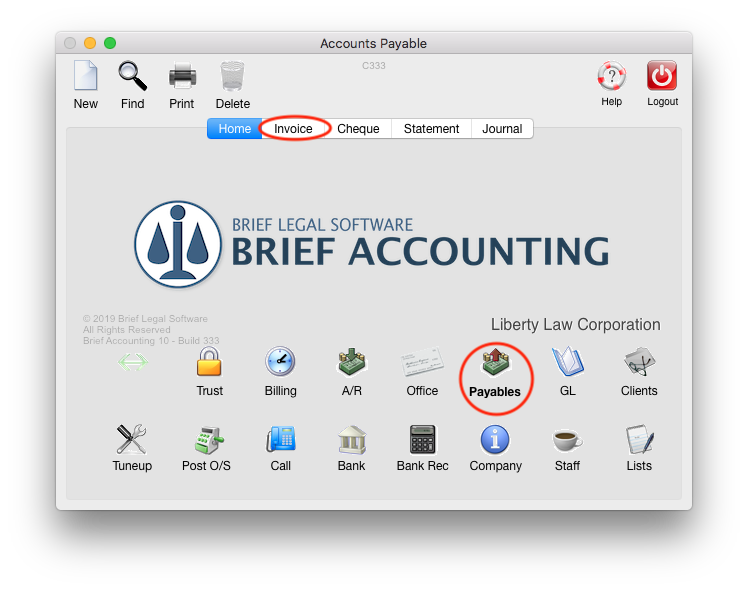
From the Brief Accounting Home screen, select the Payables module icon > Invoice tab:
Enter the Vendor Number (or partial vendor number) and click OK:
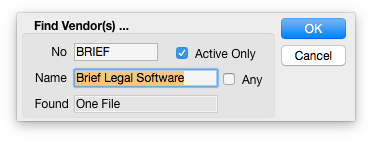
Alternately, type "all" to display a list of all Vendors, or select the "Active Only" check-box to display a list of all vendors with a current balance.
A new blank invoice for the Vendor is displayed:
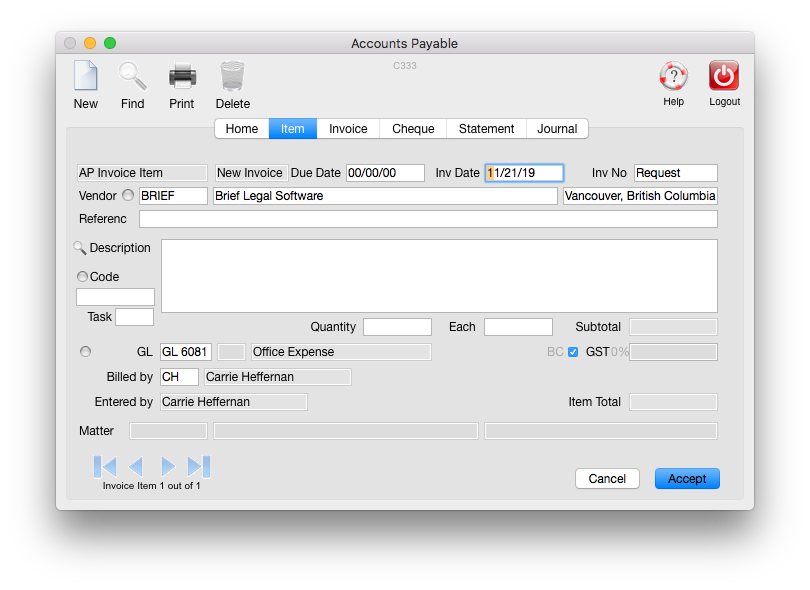
Enter the invoice details, invoice number:
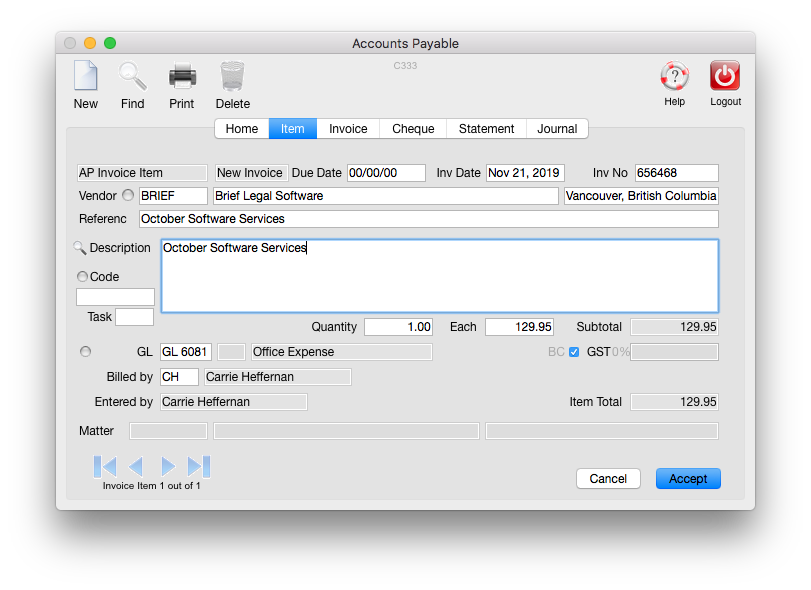
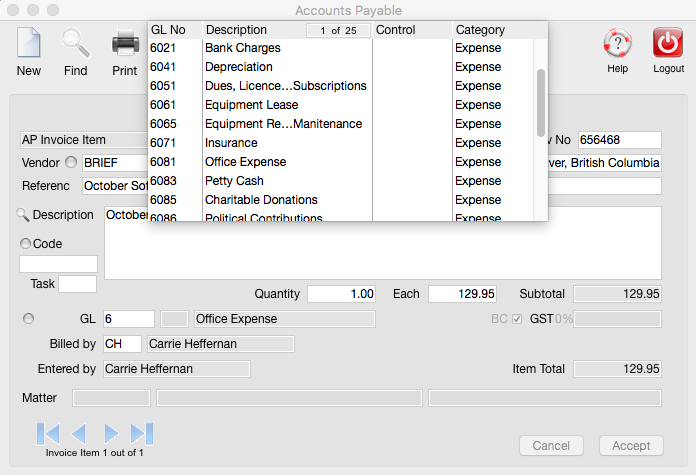
Enter the GL Account.
Expense GL Accounts begin with 6 and expenses that will be disbursed back to a client begin with 5.
Typing 6 in the GL field and hitting the tab key displays a list of all of the 6000 series Expense GL Accounts. The required account can be selected from the list:
Click Accept once the invoice item has been entered.
The main invoice screen is then displayed wit the item listed:

From the above screen, clicking New will allow a new invoice item to be added to the existing invoice.
Clicking Accept will save the invoice (edits may still be made).
Clicking Post will finalize (post) the invoice. Edits may not be made to posted invoices.
0 Comments