
The Trust Ledger in Brief Accounting displays all transactions (posted and unposted) for a given matter.
To view a Trust Ledger for a matter:
From the Brief Accounting Home screen, select the Trust module icon > Ledger tab:

Enter the File number and click OK:

Alternately, select the "Active Only" checkbox and click OK:

This will display a list of Active Trust matters (i.e. a list of matters that have a balance in trust funds):
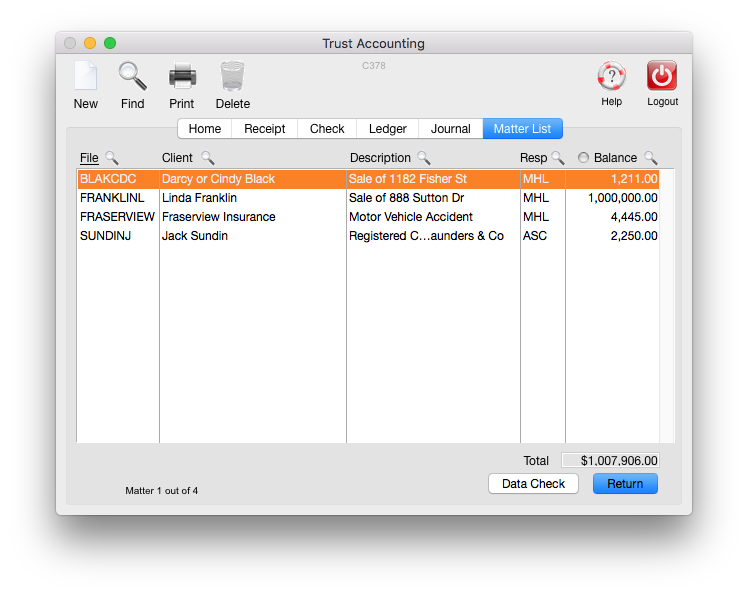
From the above screen, double-click on a matter to display the Trust Ledger card for the matter:
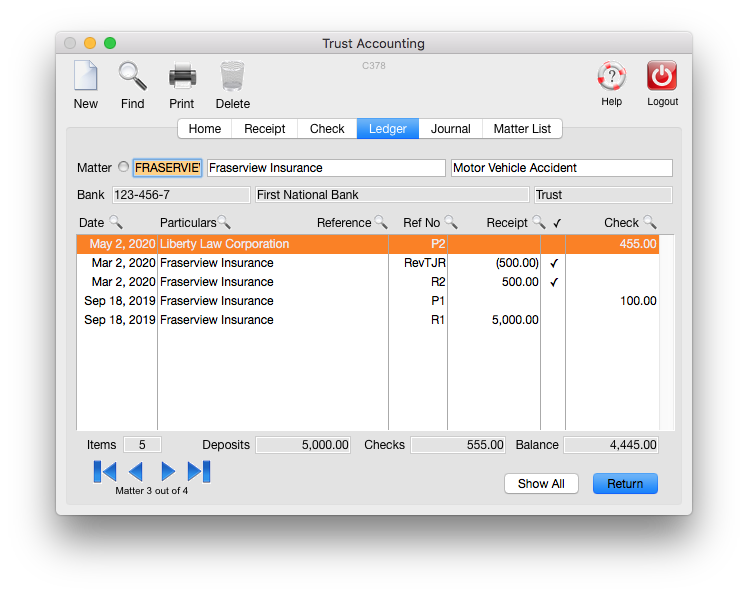
The detail of a check or receipt can be viewed by double-clicking on the transactions from the ledger.
The Trust Ledger can be printed by clicking the Print icon with the Ledger card open. There are two options when printing a Trust Ledger:
Client Ledger Option:

This displays all transactions in the Ledger (including reversed transactions) and includes additional detail such as the GJE (General Journal Entry), Matter Opened and Closed dates, and Trust Account Number:

This can be printed to:
- Printer
- Screen
- File (Excel file)
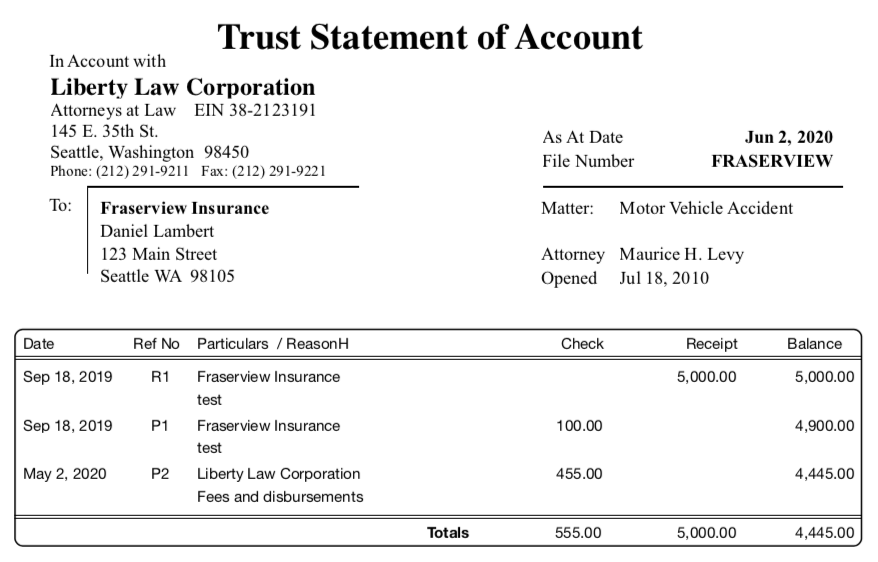
Trust Statement of Account Option:

This printed format displays in a way more suitable to send to a client as a Trust Statement and includes the Firm Header (or letterhead):
0 Comments